User Manual
Get live subtitles running in about a minute.
Quick start
- 1
Install and pin the extension
Add AxiSub Live Captioning to Chrome. Then open chrome://extensions, find it and click Details — turn on “Pin to toolbar” so the icon is always visible. (Shortcut: the puzzle-piece icon in the toolbar lets you pin it in one click.) Turn on “Allow in Incognito” there too if you want subtitles in Incognito windows.
- 2
Sign in
Click the extension icon and sign in. A new account gets 300 free credits every day for its first 3 days.
- 3
Watch a video
Open any video, click the extension icon and switch Subtitle Service on. Subtitles appear as the video plays, in the language you picked.
No subtitles?
Check three things: Subtitle Service is on, the status beside Live Subtitle Generation says connected, and the video is actually playing audio. Very short or very small players are skipped on purpose — see “Which videos get subtitles” below.
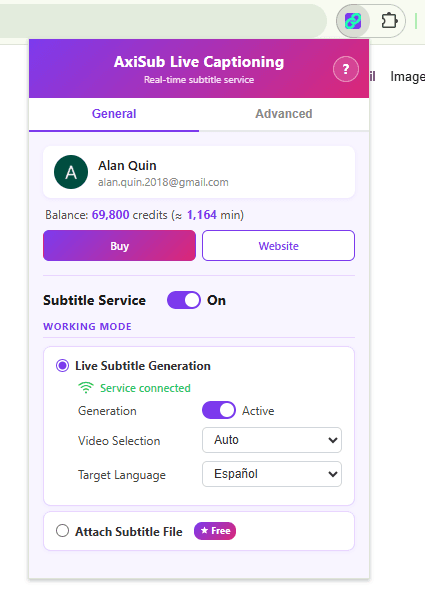 123456
- 1The ? opens this manual.
- 2Your account and balance, in credits plus an estimate in minutes. Buy opens the shop; Website opens this site.
- 3Subtitle Service — the master switch.
- 4Working Mode — choose Live Subtitle Generation or Attach Subtitle File.
- 5Inside Live Subtitle Generation: Generation, Video Selection and Target Language.
- 6Attach Subtitle File — free.
The popup and the toolbar icon
The header holds the title and a ? button that opens this manual; under it are two tabs, General and Advanced. The toolbar icon always keeps the AxiSub purple background — only the links in the middle change colour, and they tell you at a glance whether the service is ready.
- Ready — signed in, service on, connected to the server.
- Service is on, but we cannot reach the server. No subtitles.
- Signed out, or Subtitle Service is switched off.
- Service is on, but Generation is set to Inactive.
Turning the service on and off
Subtitle Service is the master switch; switching it off asks you to confirm first. While it is off the popup hides the working mode and every advanced setting, leaving only Interface — that is expected. Generation (Active / Inactive), inside Live Subtitle Generation, is a second and narrower switch: leaving it Inactive keeps the extension installed but produces no subtitles, which is the red cross on the icon.
Working modes
Live Subtitle Generation listens to the video and writes subtitles for you; this is the mode that uses credits. Attach Subtitle File displays a .srt or .vtt file you supply and is free, because it never calls the speech or translation models — it finds a suitable video on the page itself and matches the file to it, so you don't have to point at one. Switching mode saves immediately. In Attach mode the advanced settings are greyed out, with a notice explaining why.
Which videos get subtitles
Auto, the default, captions every video that is playing — including clips that started in the background before you scrolled to them, which is useful on feeds like TikTok or Instagram where you flick through clips quickly. Manual puts a selection button on each candidate video instead, labelled with a snippet of what we heard; click it to choose, and only that video gets subtitles. Under Filters you can raise the minimum player size and minimum duration, which is what keeps subtitles off thumbnails and ads.
 1
1- 1In Manual mode every candidate video gets a button like this, labelled with a snippet of what we heard. Click it to choose that video.
Language and translation
Target Language, on the General tab, is the language your subtitles are translated into. Translation Quality trades speed for accuracy — lower is faster, higher is more careful. Turn on Speech-to-Text Only when you want no translation at all: subtitles stay in the original language and cost less, 2 credits per 3 seconds instead of 1 credit per second. Extra Translation Instructions describe the tone, style or vocabulary a particular video needs; the Type / Value dropdowns plus Add build the line for you, and you can also type your own. Note that UI Language, under Advanced → Interface, is a different thing — it changes the language of the popup itself.
Subtitle appearance
Open Subtitle Look and Video Qualification to set where subtitles sit (bottom, top or middle), their size (Small up to Extra Large), text colour, background colour, opacity and font.
What saves itself, and what needs Apply
Everything on the General tab — Subtitle Service, working mode, Generation, Video Selection and Target Language — plus UI Language, is saved as soon as you change it. The settings on the Advanced tab (subtitle appearance, filters, translation quality, extra instructions) only take effect when you press Apply. Reset asks for confirmation and puts every setting back to its default.
Your account and balance
Signed out, the popup offers Login and Create Account. Signed in, it shows your name, your email, and your balance as credits plus an estimate of the minutes left; Buy opens the Pricing page and Website opens this site. One credit covers one second of audio, transcription and translation included, and silent stretches are never charged. Credits never expire.
Encrypted streams (DRM)
We don’t process encrypted audio or video streams. Players that use DRM — Netflix, Disney+ and similar services — are not supported, and no subtitles will appear there.
FAQ
The status says “Not connected”.
Make sure you are signed in and online, then reload the page — the extension reconnects by itself.
I see an “Update Required” screen.
A newer version is available. Click Update Now to install it from the Chrome Web Store.
Subtitles trail a second or two behind the speaker.
On ordinary video pages they shouldn’t: we transcribe and translate ahead of playback, and a line that would arrive too late is simply not shown. Live streams and calls — a TikTok live, for example — always run a little behind, because we can only work on sound that has already been produced. We hold finished lines on screen long enough to read them.
Do I need to keep my device volume up?
On ordinary video pages, no — we read the audio before it reaches the player, so muted device volume is fine. Live streams and calls are different: there the audio is taken after it has been mixed for output, so muting the device or the tab leaves nothing to transcribe. If you see a mute icon on the tab, turn it off first.
Does it record or upload my audio?
No. Audio is streamed only to produce the subtitles and is discarded immediately. See the Privacy Policy.
Can I use one account on several computers at once?
Yes, and your credits are shared across them.
What languages are supported?
More than 100, as both source and target language.
Do credits expire?
No.
What happens when my credits run out?
Live subtitles stop until you add more. You can top up on the Pricing page.